
Building an ergonomic office setup goes way beyond just picking out a nice chair and desk. The right setup helps you work comfortably all day, reduces aches and strain, and even makes it easier to stay productive. As someone who’s spent a lot of time optimizing home workspaces for both comfort and productivity, I know how a few smart tweaks can turn any desk into a spot where you actually enjoy working. I’m sharing my best advice, drawn from my own experience and countless chats with remote workers, so you can create a space that truly supports your well-being.
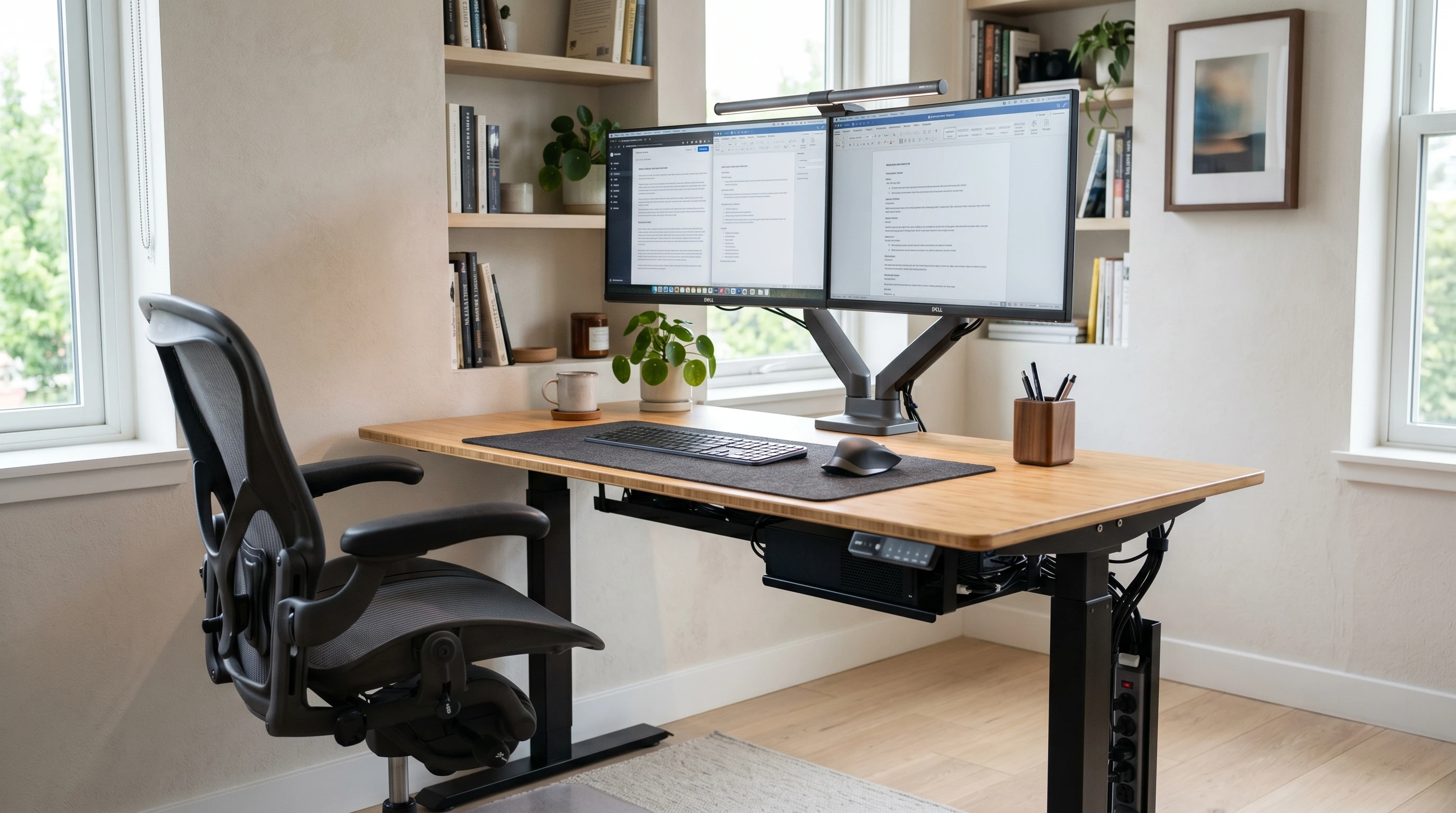
5 Core Components of an Ergonomic Office Setup
An ergonomic workspace should fit your body, not the other way around. Shifting your desk or chair by just a few inches can make a massive difference in comfort. Ergonomics not only helps you avoid back, neck, or wrist pain, but also makes your day sharper and less tiring overall. Here’s my breakdown of the essentials you’ll want to focus on.
- Chair: Adjustable lumbar support, seat height, and armrests are super important. A good chair supports your lower back, lets your feet rest flat on the floor, and keeps your hips slightly above your knees.
- Desk: Desks come in a bunch of shapes and sizes. Sitstand desks or adjustable desks let you move naturally between sitting and standing. That’s a game changer for energy levels.
- Monitor placement: Your monitor should be at eye level, about an arm’s length away. This prevents craning your neck or squinting at the screen.
- Keyboard and mouse: These should be placed so your elbows stay close to your body and your wrists are straight. Adjustable trays are pretty handy for this.
- Lighting: Natural lighting is ideal, but a good desk lamp with adjustable brightness reduces eye strain, especially if you’re working into the evening.
6 Steps to Getting Started: How to Set Up Your Workspace
Even if you’re working with what you already have at home, a few simple moves can make your setup more ergonomic. Here’s the order I recommend when getting started:
- Choose your workstation spot: Pick a space with good light and enough room to stretch out a bit. Avoid tight corners; room to move is important.
- Adjust your chair first: Sit down and tweak your seat height so your feet are flat and your knees are at about a 90-degree angle. Make sure your lower back is supported.
- Set desk height or monitor riser: Place your desk or use a riser so that your forearms are roughly parallel to the floor while typing.
- Position your monitor: The top of the screen should line up with your eye level. If you use a laptop, a stand or stack of books helps raise it up.
- Arrange keyboard and mouse: Both should be close; avoid reaching. Your wrists should stay straight and relaxed.
- Add lighting: Set up a lamp or angle your desk to catch natural light without adding glare to your screen.
What to Look For When Upgrading Your Office Gear
If you’re ready to invest in your setup, here’s what makes a real difference. Careful research helps buyers find the gear that fits both needs and budgets.
- Chairs with full adjustability: Options to move the seat pan, lumbar support, and armrests make it easier for anyone to fine-tune their fit.
- Desks that move with you: Sitstand desks can get pricey, but even a simple desktop converter lets you try standing without a big commitment.
- Cable management: It’s not the most exciting feature, but clean cable organization keeps your desk tidy and reduces trip hazards. Velcro straps or underdesk trays are super useful.
- Monitor arms: These mounts let you adjust height and angle on the fly; worth checking out if you run dual screens or switch tasks often.
- Ergonomic accessories: A split keyboard, vertical mouse, or a soft wrist rest can make a world of difference if you’re dealing with aches or tightness.
Common Problems and How to Avoid Them
Even with new gear, simple habits can undo all your hard work. These are issues I hear about a lot, and my tips for handling them:
- Slouching after a few hours: Try setting an hourly reminder to check posture. I prop a sticky note on my monitor as a gentle nudge.
- Stiff legs and back pain: Move regularly. Stand up, stretch, or walk around every 30–60 minutes. Small breaks are really important for keeping soreness away.
- Eye strain and headaches: Use the 20/20/20 rule; look 20 feet away for 20 seconds every 20 minutes. Adjust your monitor brightness to match the room, not your neighbor’s computer.
- Wrist pain: Keep wrists in a straight, neutral position. If you notice irritation, a gel pad or changing mouse positions can really help.
Posture Tips for Long-Term Comfort
I’ve found that it’s all about checking in every so often as you work. Adjust your seat or screen if you catch yourself leaning forward or shrugging your shoulders. Keeping good posture is easier if your equipment is set up to make it the natural way to sit or stand, instead of something you have to struggle to maintain.
Consider setting a recurring alarm or calendar event every hour to prompt a quick posture check or a few stretches. Over time, these small resets help build muscle memory for better sitting and standing habits. Also, investing in a footrest or an adjustable chair cushion can support overall posture, especially during long work sessions. If you ever feel restless or find yourself slumping, a five-minute walk around the room can reset both your mind and body for the next work sprint.
Lighting Matters More Than You Think
People sometimes forget about lighting, but it can make or break a comfortable workspace. Position your monitor to minimize glare, and add a desk lamp for focused tasks or if you’re in a room with poor overhead lighting. Brightness that’s too harsh or too dim strains your eyes pretty quickly. Try to arrange your desk near a window, but don’t sit directly in front of bright sunlight. Use blinds or a curtain for balance. If using artificial light, pick bulbs that offer a natural daylight spectrum for the most comfortable eye experience. Task lighting helps zero in on paperwork or reading, while diffused overhead light keeps the whole space inviting and easy on the eyes.
Pro-Level Adjustments and Gadgets
Once you’re feeling good with your basic setup, a few pro tips and tools can push your comfort even further. Here’s what I’ve found works well for my own workflow and with remote teams I’ve supported:
- Monitor calibrators: These simple gadgets help you tweak colors and brightness. They’re useful if you’re staring at your screen all day.
- Anti-fatigue mats: Perfect if you use a standing desk, these mats make long periods on your feet feel much easier.
- Personal desk fans and heaters: If your workspace runs hot or cold, a tiny fan or heater lets you control your climate without bothering anyone else.
- Noise-canceling headphones: These aren’t only for calls; blocking out distractions can make a big impact, especially for focus tasks.
FAQs About Ergonomic Office Setups
People ask questions all the time about improving their workspace. Here are a few I hear the most (and my take on them):
Q: Do I really need an expensive chair?
A: Price doesn’t always equal comfort. Look for adjustability and lumbar support. Sometimes mid-range chairs beat pricier models, as long as they fit your body’s size and shape.
Q: Can I make my kitchen table ergonomic?
A: Absolutely. Use a folded towel for lumbar support, raise your screen with a box or stack of books, and use a separate keyboard if possible. It’s all about matching the basics of good positioning.
Q: Is standing all day really better?
A: Too much standing is just as tough on your body as too much sitting. The sweet spot is moving between sitting and standing every hour or so. Listen to your body and don’t force it if you’re uncomfortable.
Q: How often should I take breaks?
A: Small, frequent breaks are really important. Even a quick stretch or walk to fill up your water bottle keeps your energy up and helps avoid tightness.
Making Your Workspace Work for You
Building an ergonomic office setup means paying attention to small details and making changes based on how your body feels during long workdays. I’ve seen firsthand how a comfortable space helps boost focus, cut down on injuries, and just makes work feel less like a chore. Whether you’re putting together your first home office or tweaking your current setup, every little adjustment counts.
If you’re interested in more tips and ideas, Desk Dwell has plenty of guides and reviews based on real experiences in work-from-home life. I love hearing what works (or doesn’t!) for others, so feel free to share your own ergonomic wins as you put these ideas into practice. Taking a few extra minutes each week to reassess your workspace can make a noticeable difference over the long term. You might stumble upon a new adjustment or tool that becomes your next must-have. Comfort isn’t just a one-time project; it’s an ongoing part of working smart and staying healthy.
If you’ve made some recent changes, or have a comment about adjusting your workspace, share in the comment section below.